# Build a custom solana faucet using Next.js and solana/web3.js - Part 1
## Introduction
Although the community agrees that building on Solana is synonymous to "*Chewing glass*", developers still love to buidl on the innovative and cool Layer 1.
To get started building, we first need to get ourselves some [SOL](https://coinmarketcap.com/currencies/solana/), the native token of Solana for transaction charges, gas fees etc.
While this can be done via the ```solana-cli``` ([here](https://docs.solana.com/cli/transfer-tokens#airdrop-some-tokens-to-get-started)), a custom faucet offers better UX and is still pretty cool. So that's what we're going to build today.
## The tools
We're going to use the following :
1. [Next.js](https://nextjs.org/docs) for building the frontend.
2. [Chakra-ui](https://chakra-ui.com/) for styling
3. [solana/web3.js](https://docs.solana.com/developing/clients/javascript-api) to interact with Solana blockchain
4. [Phantom](https://phantom.app/) as our wallet
Let's get buidling !!
## The setup
We're going to start by installing the necessary dependencies and setting up our next.js boiler plate app using ```create-next-app``` .
In addition please also [install](https://docs.phantom.app/) the** Phantom wallet**, and set up a new wallet. Once you have these down, let's begin with coding.
## Frontend
Firstly, let's set up the ```ChakraProvider```, that lets us use the Chakra-ui components. Inside ```_app.tsx``` file, wrap ```Component``` with ``````
```
import "../styles/globals.css";
import type { AppProps } from "next/app";
import { ChakraProvider } from "@chakra-ui/react";
function MyApp({ Component, pageProps }: AppProps) {
return (
);
}
export default MyApp;
```
**Note: ** I'll start applying styles to components gradually as we go on, but feel free to give it your own touch.
Now, let's set up a very simple component for our faucet.
The functionality we're aiming for is:
1. User should be able to select devnet/testnet to receive airdrop.
1. User should be able to input an address into the input box. If the address is valid, then they should be able to request for airdrop
So simple template of faucet component would look like this.
```
import { Button, Input, VStack } from "@chakra-ui/react";
import React, { useState } from "react";
const Faucet = () => {
const [address, setAddress] = useState("");
return (
setAddress(e.target.value)}
/>
);
};
export default Faucet;
```
### Address validation
Next, let's restrict the airdrop to only valid addresses. We'll use
```PublicKey``` class from ```solana/web3.js``` to first convert the string from Input to create a PublicKey object. Then we can use ```isOnCurve()``` function from ```PublicKey``` which returns ```true``` if the address is valid.
```
import { PublicKey } from "@solana/web3.js";
const validateSolanaAddress = (addr: string) => {
let publicKey: PublicKey;
try {
publicKey = new PublicKey(addr);
return PublicKey.isOnCurve(publicKey.toBytes());
} catch (err) {
return false;
}
}
```
Finally we'll attach an```onChange``` event Listener onto the input field, which sets the address each time there is a change in input. We'll make use of ```useEffect``` react hook with ```address``` as a dependency to receive up-to-date value of address and validate address each time. Let's also disable our button until the address is valid.
So putting this together we have
```
import { Button, Input, VStack} from "@chakra-ui/react";
import React, { useEffect, useState, ChangeEvent } from "react";
import { PublicKey } from "@solana/web3.js";
const Faucet = () => {
const [address, setAddress] = useState("");
const [isValid, setisValid] = useState(false);
const validateSolanaAddress = (addr: string) => {
let publicKey: PublicKey;
try {
publicKey = new PublicKey(addr);
return PublicKey.isOnCurve(publicKey.toBytes());
} catch (err) {
return false;
}
};
useEffect(() => {
const isValid = validateSolanaAddress(address);
setisValid(isValid);
}, [address]);
return (
) => setAddress(e.target.value)}
/>
);
};
export default Faucet;
```
### Requesting airdrop
Nextup, we've got to let the user choose where they'd want to receive the airdrop, devnet or testnet. This can be done in anyway you see fit, but I'm going with a simple slide button. 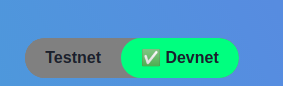
Let's build the ```SliderButton``` component.
```
import React from "react";
import { Button } from "@chakra-ui/react";
interface SliderButtonProps {
isTestNet: boolean;
setIsTestNet: Function;
}
const activeBtn = {
border: "4px solid springgreen",
backgroundColor: "springgreen",
borderRadius: "50rem",
};
const inActiveBtn = { border: "4px solid grey", backgroundColor: "grey" };
const SliderButton = ({ isTestNet, setIsTestNet }: SliderButtonProps) => {
return (
);
};
export default SliderButton
```
Finally for requesting the airdrop, we'll make use of ```Connection``` class, which helps us to create a connection to a fullnode JSON RPC endpoint.
- RPC endpoint for devnet: https://api.devnet.solana.com
- RPC endpoint for testnet: https://api.testnet.solana.com
Once we have connection in place, we'll use ```requestAirdrop``` function, which takes in publicKey (to send the airdrop) and amount (in ```Lamports```) as arguments.
Lamports is to SOL as Gwei is to Ether, a fractional unit.
As [docs](https://docs.solana.com/introduction#what-are-sols) say:
> The system may perform micropayments of fractional SOLs, which are called lamports. They are named in honor of Solana's biggest technical influence, Leslie Lamport. A lamport has a value of 0.000000001 SOL.
Which means 1 SOL = 1000000000 Lamports.
Let's also add a toaster for showing success/error messages. Putting it together, we have.
```
import { Button, Input, VStack, useToast } from "@chakra-ui/react";
.
.
.
const [isTestNet, setIsTestNet] = useState(false);
const toast = useToast();
const requestAirDrop = async () => {
try {
const NODE_RPC = isTestNet
? "https://api.testnet.solana.com"
: "https://api.devnet.solana.com";
const CONNECTION = new Connection(NODE_RPC);
const confirmation = await CONNECTION.requestAirdrop(
new PublicKey(address),
1000000000
);
toast({
position: "top",
title: "Airdrop successful",
description: "Please check your wallet",
status: "success",
duration: 5000,
isClosable: true,
});
} catch (err) {
console.error("Error: ", err);
toast({
position: "top",
title: "Airdrop failed",
description: "Something went wrong ",
status: "error",
duration: 5000,
isClosable: true,
});
}
};
```
### Putting it all together
Finally with all the fuctionality added, our ```Faucet``` component should look like this.
```
import { Button, Input, VStack, useToast } from "@chakra-ui/react";
import React, { useEffect, useState } from "react";
import { PublicKey, Connection } from "@solana/web3.js";
import SliderButton from "./SliderButton";
const Faucet = () => {
const [address, setAddress] = useState("");
const [isValid, setisValid] = useState(false);
const [isTestNet, setIsTestNet] = useState(false);
const [loading, setLoading] = useState(false);
const toast = useToast();
const validateSolanaAddress = (addr: string) => {
let publicKey: PublicKey;
try {
publicKey = new PublicKey(addr);
return PublicKey.isOnCurve(publicKey.toBytes());
} catch (err) {
return false;
}
};
useEffect(() => {
const isValid = validateSolanaAddress(address);
setisValid(isValid);
}, [address]);
const requestAirDrop = async () => {
try {
const NODE_RPC = isTestNet
? "https://api.testnet.solana.com"
: "https://api.devnet.solana.com";
const CONNECTION = new Connection(NODE_RPC);
setLoading(true);
const confirmation = await CONNECTION.requestAirdrop(
new PublicKey(address),
1000000000
);
setLoading(false);
toast({
position: "top",
title: "Airdrop succesful",
description: `Txn Hash ${confirmation}. Please check your wallet and SolScan`,
status: "success",
duration: 5000,
isClosable: true,
});
setAddress("");
} catch (err) {
console.log("Error: ", err);
setLoading(false);
toast({
position: "top",
title: "Airdrop failed",
description: "Something went wrong.",
status: "error",
duration: 5000,
isClosable: true,
});
}
};
return (
setAddress(e.target.value)}
color={"blackAlpha.900"}
backgroundColor="plum"
_placeholder={{ color: "blackAlpha.700" }}
/>
);
};
export default Faucet;
```
Finally, place the `````` component into ```_app.tsx```
### Lets test it out
Feel free to style and customise it as you'd like. This is what I've made :)
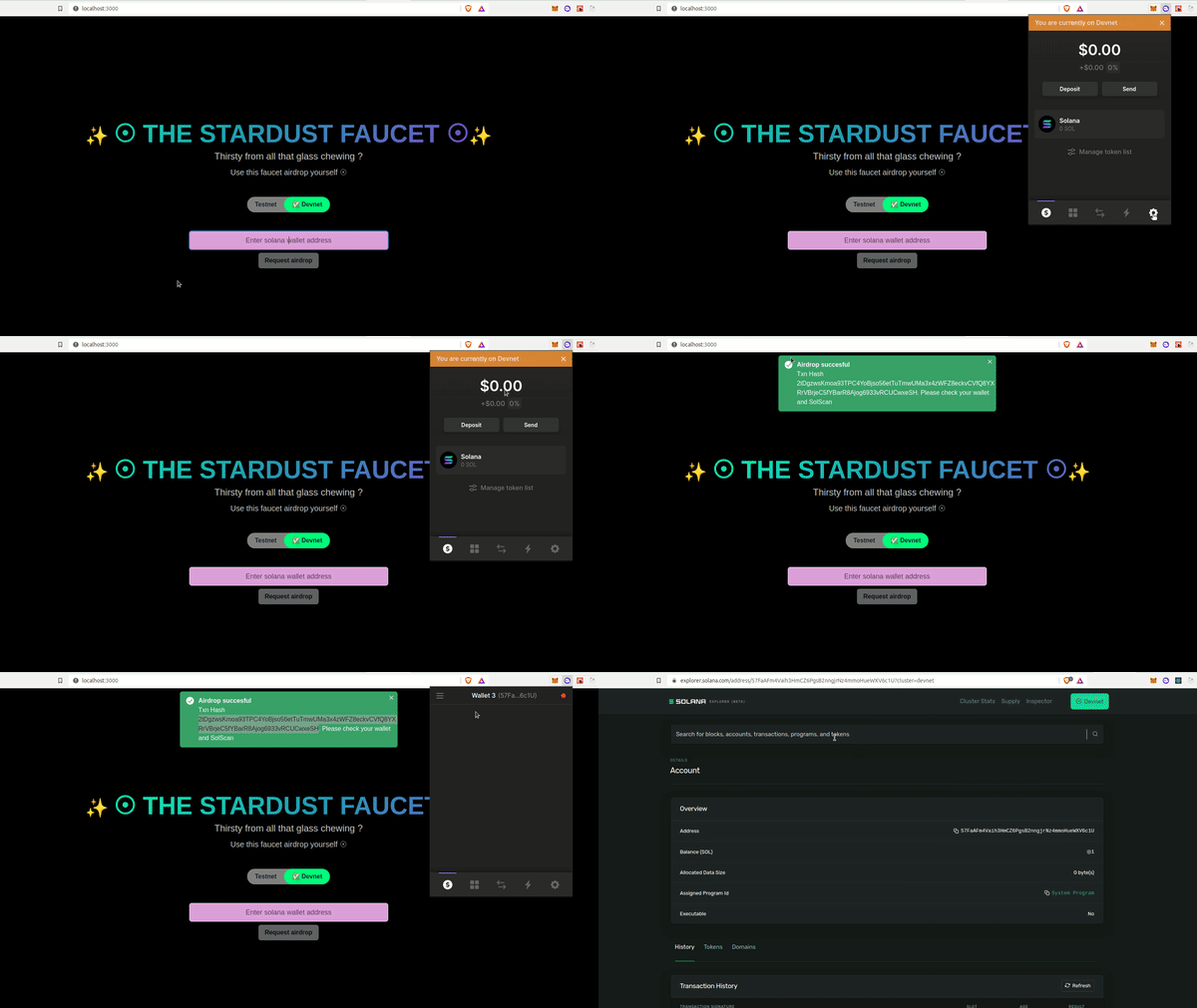
You can view the transaction details by copying the transaction hash and checking in [Solana explorer](https://explorer.solana.com/) (Make sure you choose the correct network as transaction )
### Next steps:
Let's improve the security of out faucet and also we'll deploy the faucet live to vercel. That's coming up in [part-2](https://sanjayrajesh.hashnode.dev/custom-solana-faucet-using-nextjs-part-2)
**Note: **
If you prefer learning via video, check out this [youtube playlist](https://www.youtube.com/watch?v=SNEyD8Kn9Xk&list=PLHPQWp2x-x8DpUDdDLCeC19Y0I0_i-9N8) I have created for this article.